
Electronic document signing has changed the way I handle paperwork. It saves time, reduces clutter, and keeps everything traceable. But I always ask a simple question: how secure is it? This is where SMS authentication steps in. Adding a layer of identity check with a one-time password sent to the signer's phone makes a real difference. At CloudSign.ie, I focus on making document workflows not just fast, but also secure. Let me share how to set up SMS authentication for document signing, why it matters, and how you can get the most out of this process.
Why SMS authentication is worth it
When you send a contract for digital signature, you want to be sure that the right person is signing it. Passwords can be guessed or stolen. Email inboxes do get compromised. But most people keep pretty close track of their mobile phones. With SMS authentication, a unique code is delivered to the intended signer. They enter it once, and only then can they sign the document.
A one-time code to a mobile number locks out unwanted eyes.
SMS authentication adds an extra barrier for anyone trying to sign a document without permission. I see many Irish businesses moving documents online, but a surprising number skip steps that keep them truly safe. If you are new to switching from paper to paperless, my digital transformation checklist can guide you through the core changes.
How SMS authentication works with document signing
Here's how SMS authentication works for electronic signatures:
- The sender uploads a document and prepares it for signature.
- When adding the recipient, the sender enters their mobile number as well as their email.
- The document is sent. The signer receives an email invite as usual.
- During the signing process, an SMS code is delivered to the signer’s phone.
- Only after they successfully enter this code does the signature process continue.
This extra step not only protects sensitive documents, but also provides an audit trail that proves who signed what, and when. At CloudSign.ie, we use SMS codes that expire quickly, so even if someone snags a phone for a moment, they can’t use the code long after it is sent.
Step-by-step: Setting up SMS authentication with CloudSign.ie
Setting up SMS authentication is simple, but the first time I guided a client through it, they were nervous. They worried it would slow things down. What actually happened? Their clients responded faster than ever, and nobody missed the extra step.
- Create or log in to your CloudSign.ie account.
Start at your dashboard. If you’re using our free plan, which suits individual users with up to 21 documents a month, you have full access to authentication tools.
- Upload the document you need to get signed.
Click “New Envelope” and select your file. You can add multiple documents or pages at once.
- Add recipients.
Enter the signer’s name and email, just like you normally would. Then, locate the field for SMS mobile number. Double check the country code and number, mistyped numbers waste everyone’s time.
- Select “Require SMS authentication.”
By checking this option, you trigger a prompt for the recipient to enter a code during signing.
- Customize your message (optional).
You can add instructions or a short message, letting the signer know they will receive an extra code on their phone.
- Send the document.
When you click send, the signer receives the email linking them to the document and, when they begin, an SMS code.
- Recipient enters the code to sign.
The SMS typically arrives within seconds. If it doesn’t, the user can request a resend from the page.
- Document is signed, with full audit trail.
Once complete, CloudSign.ie records the authentication event as part of the signing history. You can access it anytime.
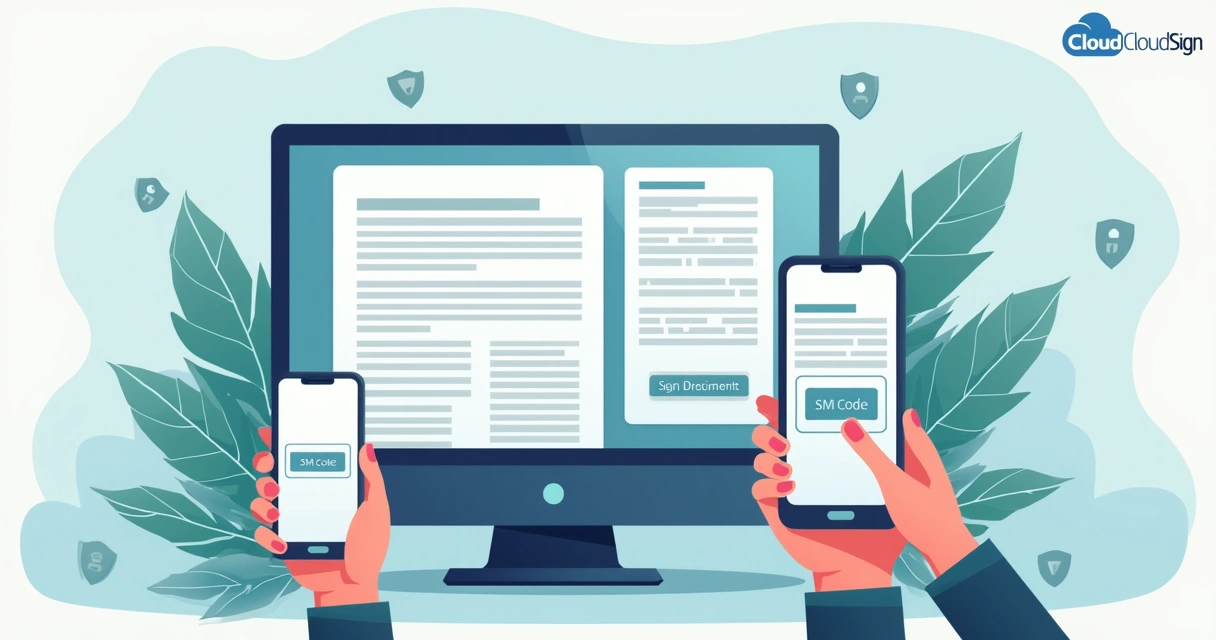
I use SMS authentication mainly for contracts, NDAs, and any paperwork that’s sensitive. If I’m dealing with large volumes or need even stronger authentication, I sometimes suggest passkeys, which I cover in detail in my guide to using passkeys for stronger e-signature security.
Security benefits and real-world tips
In my experience, most clients welcome the extra step. But I’m aware: not all SMS authentication is created equal. Some software sends codes that last too long, or doesn’t prevent repeated attempts. At CloudSign.ie, expired codes and proper attempt limits lower risks.
But I always want to be transparent. Studies from Purdue University and Eurecom reveal that, while SMS codes are a big improvement over email alone, attackers with access to the same device may be able to intercept codes. For the highest-stakes documents, consider two-factor options or our encrypted delivery features.
- Keep mobile numbers updated. Out-of-date numbers frustrate everyone. Always confirm before sending.
- Warn signers about the SMS step. A quick note prevents confusion.
- For urgent, high-risk contracts, combine SMS with another ID check (like passkeys or in-person review).
- Remind signers to keep their devices secure.
- Review the signed envelope’s audit log for full traceability.
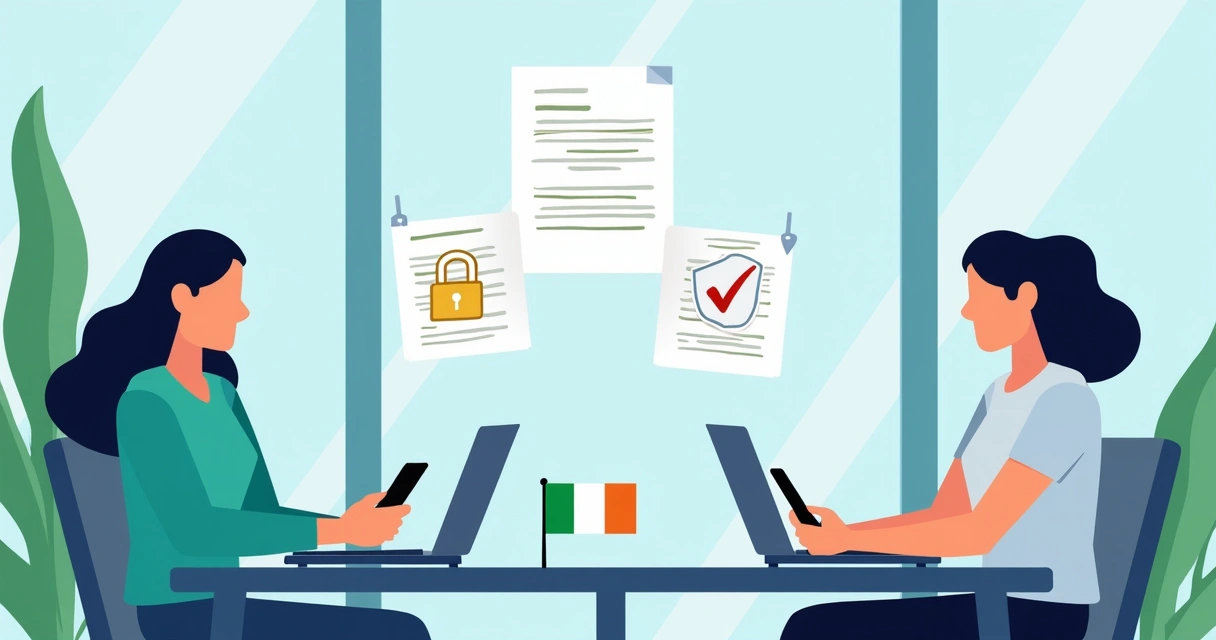
For more ways to keep your documents safe, my article about handling signature requests for sensitive documents covers encryption, multi-factor checks, and more.
Common mistakes to avoid with SMS authentication
After setting up SMS authentication for dozens of businesses, I have spotted a few repeat problems:
- Sending to office landlines.
Only mobile numbers work. If you send to a desk phone, the SMS will never arrive.
- Not explaining the process to signers.
Clients sometimes ignore the SMS or think it is spam. Tell them in advance, or customize your invitation email.
- Entering the wrong country code.
Numbers outside Ireland or in overseas offices must match the right format.
- Leaving the code entry open too long.
Short time limits for codes are safer.
If you ever have trouble, CloudSign.ie’s support can check your log and pinpoint where the process failed.
How SMS authentication supports mobile, remote, and hybrid signing
SMS authentication fits right into mobile and hybrid team setups. I’ve seen teams in the field, contractors, engineers, delivery managers , using their mobile phones to sign and approve documents on the go. This extra step means even if someone finds a tablet or shares an email, only the real contract signer, phone in hand, can complete the document.
For more on signing from mobile devices, I explain the steps for digitally signing documents with your smartphone, and for field teams, see secure mobile document signing for field teams.
Setting reminders and maintaining workflow speed
A worry many clients have is speed. Does the extra step slow down signing? My data shows, not if people expect it. Plus, I can set up reminder workflows inside CloudSign.ie. These send nudge emails if someone forgets to complete the SMS step, so signatures don’t fall through the cracks, as I outline in my guide on setting up e-signature reminders.
Conclusion: Build trust and security into your signing process
Setting up SMS authentication for document signing with CloudSign.ie is quick, but the results are long-lasting. You get signatures only from the right people, a trustworthy audit history, and peace of mind. For Irish businesses wanting to move contracts online while keeping security top of mind, SMS authentication checks a lot of boxes. Try it out for yourself, and see how secure document signing can be simple and fast.
Start with CloudSign.ie’s free plan to see how SMS authentication protects your agreements, no matter where you or your clients are. Ready for safer, smarter document signing? Give CloudSign.ie a try today.
Frequently asked questions: SMS authentication for document signing
What is SMS authentication for document signing?
SMS authentication for document signing is a process where a unique code is sent to the signer’s mobile phone, and the code must be entered before they can complete an electronic signature. This step verifies that the person signing has access to the registered mobile number, adding another layer of security.
How do I enable SMS authentication?
To enable SMS authentication with CloudSign.ie, upload your document, add the recipient’s mobile number during the setup process, and check the “Require SMS authentication” box before sending the document. The system takes care of sending codes and managing the verification automatically.
Is SMS authentication safe for signing documents?
Yes, SMS authentication is considered safe for most document signing needs because it adds an extra barrier, access to the correct phone number. However, as research from Purdue University shows, it’s possible for attackers with device access to read SMS codes, so it’s best combined with other security measures for sensitive transactions.
What do I do if I don’t get the code?
If you do not receive the SMS code, first check your phone number for typos, ensure signal coverage, and confirm your phone isn’t on “Do Not Disturb.” Most e-signature services like CloudSign.ie let you request a new code on the signing page. If the issue persists, reach out to the sender or customer support for help.
Can I use SMS authentication on any device?
You can use SMS authentication on any internet-connected device to sign documents, as long as you receive the verification code on your mobile phone. The code entry works on laptops, tablets, and desktops, but the SMS itself will go to your mobile number.